Tutorial by Krisjanis Rijnieks; ported and adapted by Nicolas De Coster original credits retained below.
KiCad FabLib
Note: this page is a port of the README from the project hosted at https://gitlab.fabcloud.org/pub/libraries/electronics/kicad. For the original source and updates, please see the dedicated project repository.
Before you begin: KiCad itself must be installed on your machine. Follow the official getting‑started guide at https://docs.kicad.org/9.0/en/getting_started_in_kicad/getting_started_in_kicad.html for instructions corresponding to your operating system.
KiCad component library based on the the Fab Inventory.
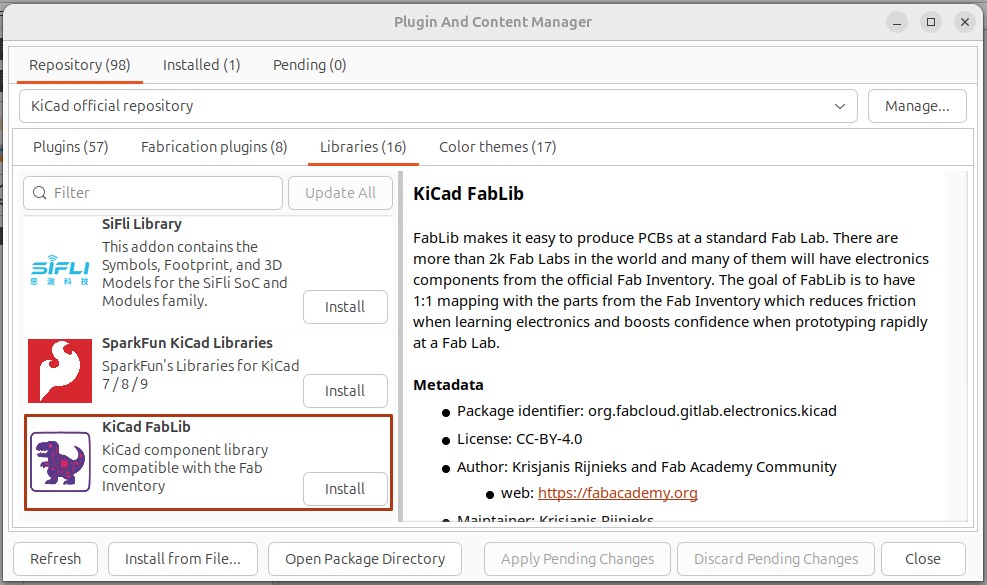
Table of Contents
Introduction
FabLib makes it easy to produce PCBs at a standard Fab Lab. There are more than 2k Fab Labs in the world and many of them will have electronics components from the official Fab Inventory. The goal of FabLib is to have 1:1 mapping with the parts from the Fab Inventory which reduces friction when learning electronics and boosts confidence when prototyping rapidly at a Fab Lab.
Dependencies
Make sure you have KiCad 8 (or greater) installed.
Installation
Install from KiCad Plugin Repository
Warning! this installation method depends on KiCad team accepting a merge request of the latest stable version, and the version available via KiCad Plugin and Content Manager might not be the latest. Please refer to Install from File section if you want to make sure that you have the latest version.
Follow the steps below to install KiCad FabLib via official KiCad plugin source.
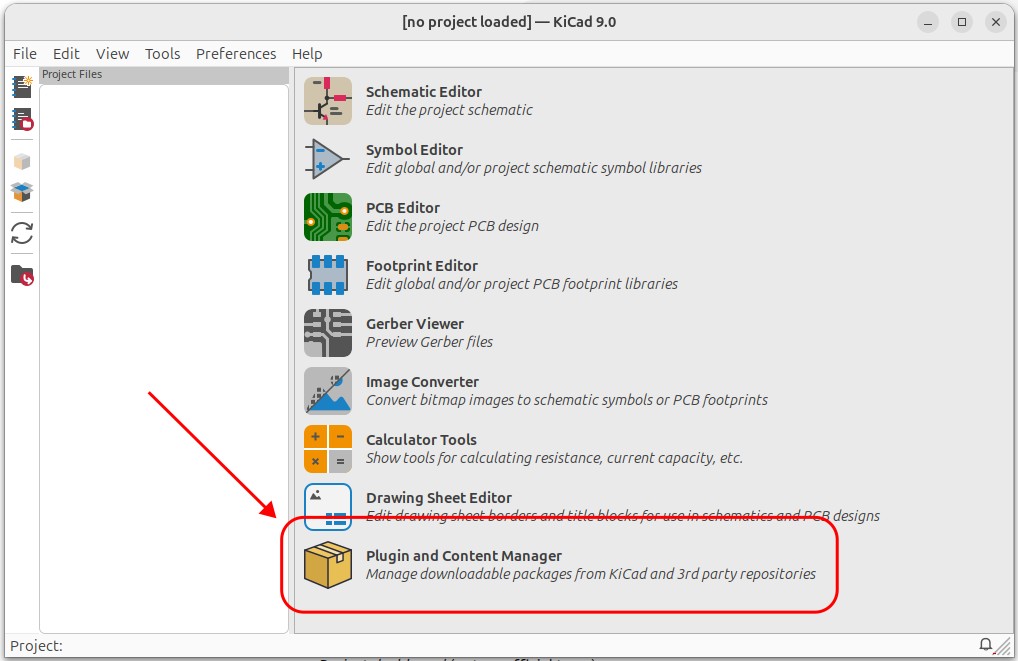
- (Step 1): Go to "Tools > Plugin and Content Manager" or press
Ctrl + M. - (Step 2): Select the Libraries tab.
- (Step 3): Look for "KiCad FabLib" in the "Libraries" tab.
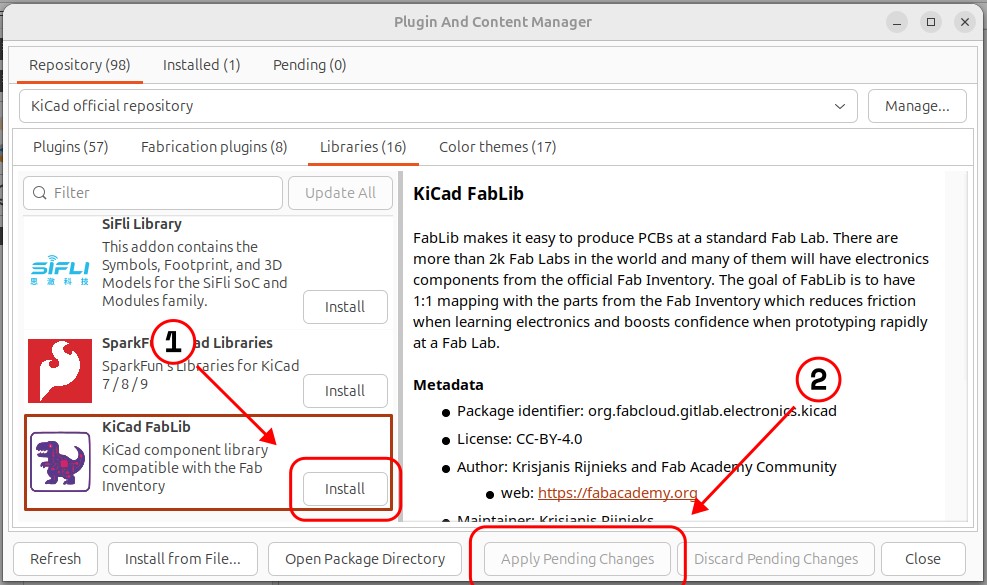
- (Step 4): Click "Install".
- (Step 5): Click "Apply Pending Changes".
As for Step 1, here is where you can find the KiCad Plugin and Content Manager in the Project Manager menu.
As for Step 4 and 5, below is an image showing where to click. It will take a little bit of time for KiCad to download everything, but in a few seconds you will be ready to use it.
Install from File
It is possible to install plugins from a zip file via the KiCad Plugin and Content Manager. This repository has two kinds of zip files available that can be used for that purpose.
To install the package of your choice, follow the steps below.
- (Step 1): Go to "Tools > Plugin and Content Manager" or press
Ctrl + M. - (Step 2): Click "Install from File..."
- (Step 3): Look for kicad-fablib zip file.
- (Step 4): Click "Open".
KiCad Plugin and Content Manager will install it.
Latest Releases
Latest releases can be found by clicking on the Releases link on the right side menu. The downloaded file name should look as follows (version can be different).
kicad-fablib_0.0.2.zip
Nightly Builds
Nightly builds are packaged version of the current state of the default branch. It contains all the latest updates and fixes. Nightly builds can be found in Build -> Pipelines section. You will need to unzip the enclosing zip file (artifacts.zip) before installation. The resulting file name should look as follows (version can be different).
kicad-fablib-nightly_2026.01.66804.zip
Credits
- Tutorial by Krisjanis Rijnieks.
- Thanks Miriam Choi for the dino icon.
- Thanks Saheen Palayi for debugging and suggestions.
- Thanks Aapo Heiska for 3D model contributions
Contributing
You are more than welcome to contribute to the project! However, we should be on the same page. Please read the CONTRIBUTING document.
License
CC-BY-4.0 (as recommended in KiCad Addon Package Metadata repository)