3D Modeling Tools and video tutorials
Here's a series of short introduction to the main strategies for 3d geometric modeling. Most of them are open source / freeware.
Fusion 360

Fusion 360 (works cloud based) http://www.autodesk.com/products/fusion-360/overview Free as educational software.
TinkerCAD

TinkerCAD (online - no download) http://www.tinkercad.com/
TinkerCAD Tutorial Pages 96-110 (PDF) "Chapter 8: Designing for the MakerBot", Getting Started with MakerBot
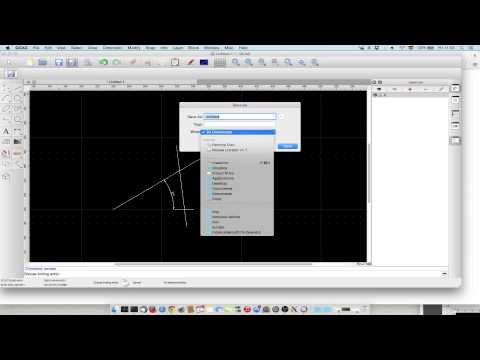
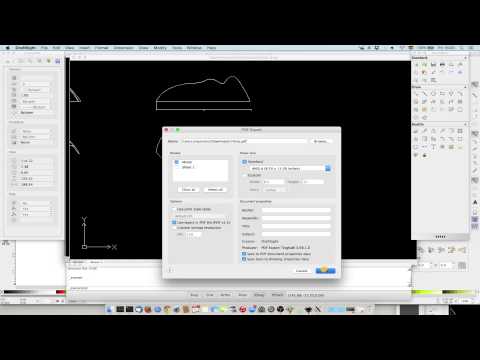
CAD: QCAD + Draftsight

Download QCAD https://qcad.org/en/
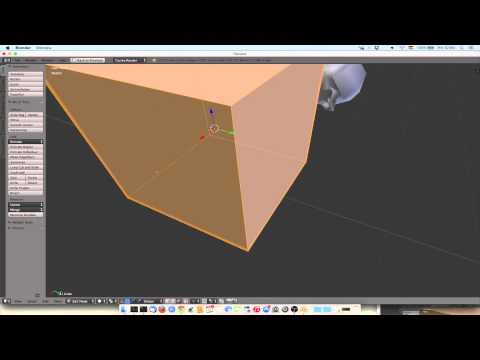
Mesh: Blender

Download BLENDER https://www.blender.org/
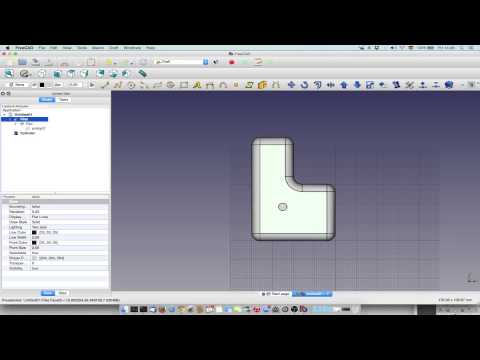
Solid+Parametric: FreeCAD

Download FreeCad https://www.freecadweb.org/
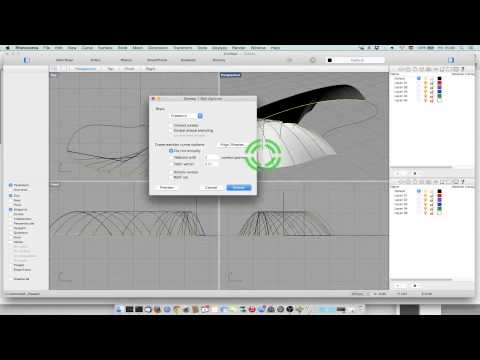
NURBS: Rhinoceros 3D

Download Rhino https://www.rhino3d.com/
SketchUp

Download Google SketchUp http://sketchup.google.com/
Google SketchUp Tutorial Pages 110-117 (PDF) "Chapter 8: Designing for the MakerBot", Getting Started with MakerBot
OpenSCAD

Download OpenSCAD http://www.openscad.org/ OpenSCAD Modeling Tutorial Read "Parametric Modeling with Solid Geometries", Getting Started with MakerBot, Chapter 8: Desinging for the MakerBot, pages 193-204 OpenSCAD DXF Extrusion & Exporting from Inkscape DXF Extrusion can be tricky. This is completely optional. Read "Parametric Modeling with Solid Geometries", Getting Started with MakerBot, Chapter 8: Desinging for the MakerBot, pages 204-212
Autodesk 123D Design
This program has been deprecated for FUSION 360
Download Autodesk 123D Design http://www.123dapp.com/design
123D Make Tutorial Pages 110-117 (PDF) "Chapter 8: Designing for the MakerBot", Getting Started with MakerBot
3D Tin
Bitmap / Pixelmap / Raster Graphics

3D Tin (online - no download)
3D Tin Tutorial Pages 90-95 (PDF), "Chapter 8: Designing for the MakerBot", Getting Started with MakerBot
Data workflow among these softwares
Note
There are several places in the text where the command line code could not fit on one line. When you see something like this in the text:
sudo cp ~/Desktop/Inkscape-OpenSCAD-DXF-Export/*
/usr/share/inkscape/extensions/
You should ignore the "" at the end of the first line and paste the first line in, followed by a space. Then pase the second line of code.
For example - this code:
sudo cp ~/Desktop/Inkscape-OpenSCAD-DXF-Export/*
/usr/share/inkscape/extensions/
Should look like this when you paste it into the terminal:
sudo cp ~/Desktop/Inkscape-OpenSCAD-DXF-Export/* /usr/share/inkscape/extensions/
Original tutorial by:
-
Anna Kaziunas France | v1.0 | 2013
-
Updated by Eduardo Chamorro, Fab Lab Seoul 01.2017
Licensed under a Creative Commons Attribution-NonCommercial-ShareAlike 3.0 Unported License